Posts

PlayStation VR 2: Release Date, Design, And More About PSVR 2

Image
  A follow-up PlayStation VR headset is currently in development. Sony has announced that they are working on a follow-up to their PSVR headset for PlayStation 5. The PlayStation VR 2 is official, and it is coming out very, very soon. PSVR 2 has a lot of massive improvements. The original PSVR was introduced in 2016. It has pretty significant drawbacks such as resolution and tracking. We still do not know about the significant updates. PSVR 1 The current PSVR headset has lights surrounded all over it. PSVR controllers also have a big ball of light on them. The camera sees those lights and then tracks your movements. It has some issues, like you need to be in a dark room; otherwise, the PlayStation camera will not see the lights. The camera on the PSVR is also cant track fast movements. It has a resolution of 960x1080p per eye. It supports a 100-degree field of view. It is higher than the field view of quest 2. It has a refresh rate of up to 120 Hz. PSVR 2 The PSVR 2 headset will ha...

Unable To Activate Windows Defender Firewall: Here Are The Fixes

Image
  Windows Defender Firewall can offer the device or system security against the digital threat from the internet. It enables you to do multiple things like utilizing quick messaging applications, sharing folders, files, and devices, browsing the internet, connecting to the Homegroup on the local network, and many more. Numerous users are reporting that they are unable to activate the Windows Defender Firewall on their system. So, if you are dealing with the same trouble, then follow these directions given below. Reboot the Service of Firewall To reboot the service of the firewall, follow these on-screen steps mentioned below: Navigate to the Search bar on your system. Then input ‘service.msc’ in it and hit the Enter button over the keyboard. Once invoked the Services screen, find the ‘Windows Defender Firewall’ option. Thereafter, right-click on it and pick the Restart button. You have to wait to complete the reboot process. Later, select the ‘Windows Firewall’ and right-click on i...

Measure Heart Rate By Google Pixel Camera

Image
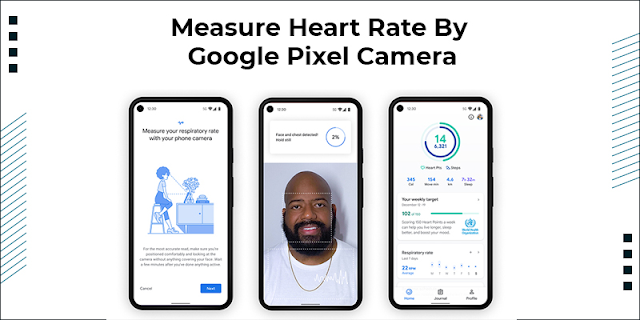
  Google confirmed that Google would be able to measure your heart rate and respiratory rate using the Google Pixel camera. The feature will work on only Pixel devices. The heart rate monitoring feature will use your front camera to identify the small movements in your chest when you take a breath. This data will be further used to identify your respiratory rates. The back camera lens will monitor the respiratory rate. You will have to place a finger on your back camera lens. The lens will try to detect blood movements in your veins. It will give you data regarding your heart rate. Everyone is excited about this feature. This feature is so innovative. It is accurate compared to other smartwatches with heart rate sensors. Updated Google Fit  We have a new updated version of Google Fit. After the update, you will see two new options on your Google fit app. · Check your heart rate · Track your respiratory rate. These features work only in Google Pixel devices. You will need the u...

Firewalla Gold: Everything You Need To Know About

Image
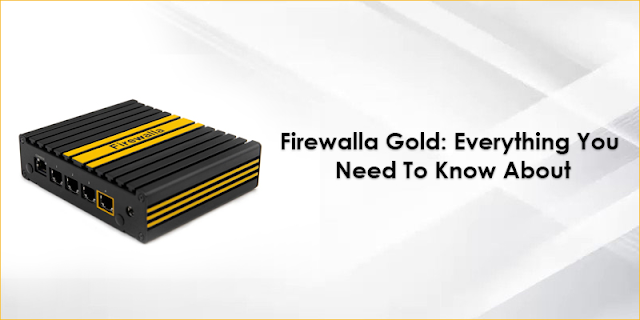
  Every day we hear news of security breaches and privacy breaches. The Internet can be a dangerous place. There are also attacks on equipment and devices. We need to take a proactive approach and do more. What Is Firewalla Gold Firewalla is a prosumer or small business firewall. It gives you more than a firewall. There is so much that it can do. Firewalla Gold has four ethernet ports. The port supports a maximum speed of around 3 Gbps. It has 4 GB RAM and 32 GB SSD storage. It also has an Intel Celeron quad-core processor. You will get good hardware in terms of a router and a firewall. Design And Build It is made up of aluminum. It has 4 fully-routable Ethernet ports. The fourth port is the default WAN port. It has a yellow square in the design. It also has a red dongle. The dongle is plugged into the USB port. It is a BlueTooth dongle. It is used for pairing the device up with a  smartphone. It has an HDMI port. Along with this option, Firewalla Gold has an On-Off button and...

Google Chrome Tips Clear Cache, Cookies, History

Image
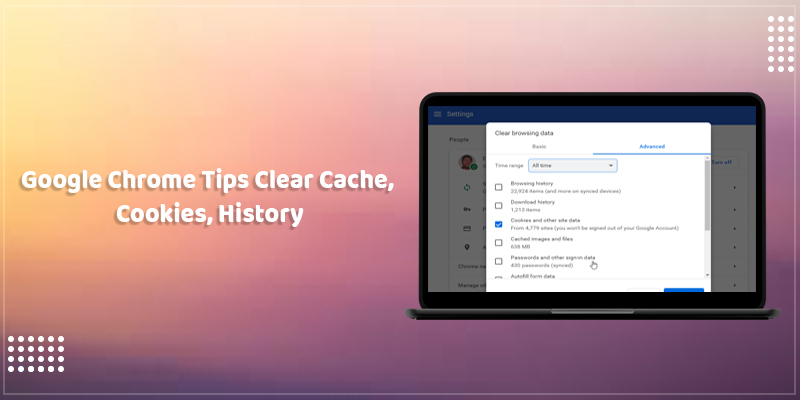
  Google Chrome optimizes the performance of surfing by storing browsing history, cache, and cookies. You can quickly load any previously visited website because of it. If the web content is cached, then it is quick to load. Website stores cookies on your computer or laptop that contains site preferences and login status. Every website you visit on the browser is stored under browsing history. You can also use the private window feature to activate private browsing mode. In private browsing, your browsing history is not stored. Google Chrome has a feature that allows you to clear your cookies automatically. There is no option to clear the Browsing History and cache automatically. It needs to be done manually. Clear Browsing Data If you have done it before, you know that the process is simple. If you have no idea about the process, you are in the right place. We will tell you the step-by-step process to clear your browsing history, cache, and cookies. Step 1: Open the chrome browser...

Google Stadia Pro: Details And Free Games

Image
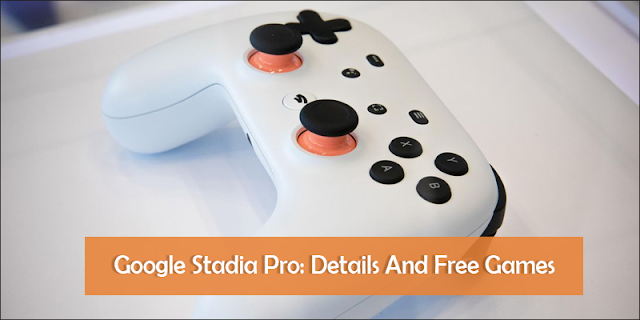
  Stadia was released in 2019. There was a partnership between Stadia and YouTube. As a result, it allows YouTube premium members to claim a Stadia Premium edition for free. On the other hand, it allows you to play PC games on your smartphone. A lot of people do not know what Stadia is? You can access Stadia for free. However, you will have to purchase the game then you can use it on the Stadia platform. You will have no need to pay a subscription. Google Stadia Pro Stadia is free as a platform; on the other hand, Stadia Pro is an add-on. It costs around $9.99 per month. Most importantly, the Stadia Pro is not necessary to use Stadia. It provides some additional benefits. The Stadia Pro is one of the Stadia best features. Stadia offers a lineup of free games every month. If you claim any game, then it will be in your library until your subscription plan. The launch of Stadia gave 52 games for pro members. This includes games like Destiny 2, Metro Exodus Series, etc. You will see a ...

How to Troubleshoot a Wireless Mouse That’s Not Working?

Image
  A mouse is one of your computer’s most used peripherals, and with wireless technology expanding mouses have also adopted the wireless feature. So how do you troubleshoot your wireless mouse when it stops working or a new mouse is not recognized by your computer. Troubleshooting Wireless Mouse When a wireless mouse is not working as it should, there are a few troubleshooting steps to fix the issues: Battery: First, check the batteries of your mouse. Make sure that the batteries are inserted properly, and they are not worn out. If your batteries are old, then insert new ones. Power Switch: Many wireless mouse devices have a power switch to turn it off when not in use. Check whether the switch is turned on or not.  Receiver: Every USB mouse needs a receiver that plugs into the available port of your PC or laptop. Make sure that it has been properly connected with your computer. If the mouse is still not working, then move the receiver to another port.  Surface: Mouse does ...